
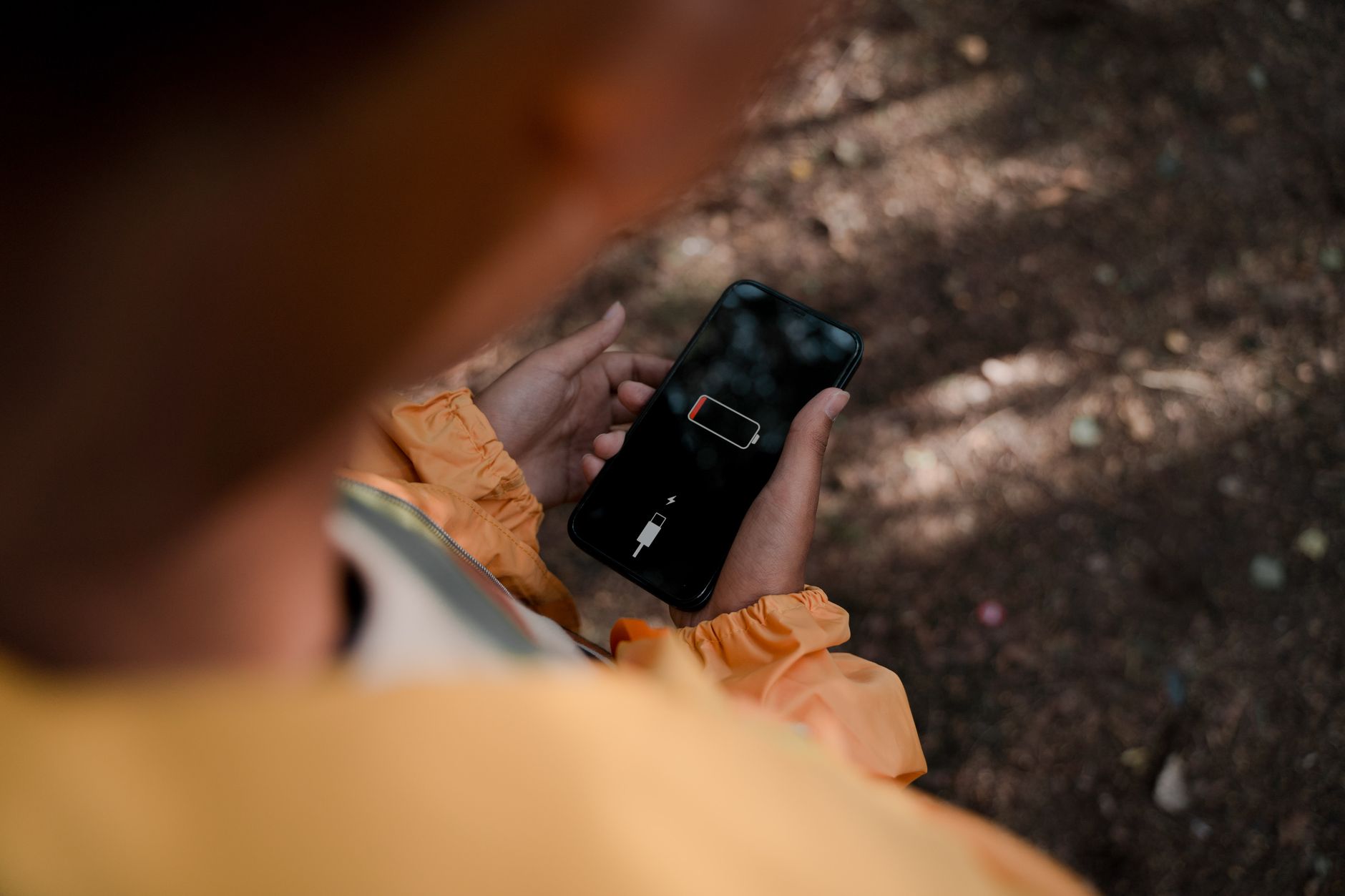
I was on a bus from Chiang Mai to Pai in northern Thailand, winding through mountains on a road with more curves than a roller coaster, when my phone popped up a notification: "Your data plan has 100MB remaining." Twenty minutes later, another notification: "Your data plan has been exhausted."
I still had two hours of bus ride ahead of me, I needed Google Maps to figure out where my guesthouse was, and I'd been using my data connection to message the guesthouse owner about late check-in. Suddenly, nothing. No maps, no messages, no way to look up the address I hadn't bothered to screenshot.
That was two years ago, and it taught me a lot about what happens when your eSIM data runs out and how to handle it without panicking.
What Actually Happens When You Hit Zero
When your eSIM data runs out, your phone doesn't explode. It doesn't lose its connection entirely. Here's the technical reality:
Your phone stays connected to the cellular network. You'll still see signal bars. But when you try to load a webpage, send a message through WhatsApp, or open Google Maps, nothing happens. Requests time out or fail. Some providers show a message saying your data is exhausted. Others just silently stop passing data through.
Your phone calls and SMS on your home SIM still work (assuming you kept your primary SIM active). WiFi works normally. It's specifically the eSIM's mobile data that stops.
One thing I didn't realize until it happened: some apps behave strangely with zero data rather than no connection. Google Maps might show you cached map tiles from areas you recently viewed but can't load new areas or calculate routes. WhatsApp will show messages as "pending" with a single gray checkmark, queuing them to send when you're back online. Your email app will keep trying to sync and draining your battery faster.
Your Immediate Options
Option 1: Buy a Top-Up or New eSIM Plan
This is the best option if you can get WiFi for a few minutes. Most eSIM providers sell data top-ups or additional plans that you can purchase and activate within minutes. Connect to any available WiFi network, whether it's a cafe, hotel, restaurant, or even a McDonald's, and buy more data.
GEO (getesimonline.com) makes this process fast. You can buy a new plan, get the QR code immediately, and install it right there. The whole process takes about 3-5 minutes on WiFi. Some providers also let you add data to your existing plan, which is even faster since you don't need to install a new profile.
Cost for a quick top-up: typically $3-8 for 1-3GB, depending on the country. That's enough to get you through a day or two while you figure out a longer-term solution.
Option 2: Find WiFi
In most tourist-friendly cities, free WiFi isn't hard to find. Cafes, shopping malls, hotel lobbies (even if you're not staying there, nobody's checking), fast food chains, and public libraries all tend to offer it. In many Asian cities, 7-Elevens have free WiFi. In Europe, city centers often have municipal WiFi networks.
The quality varies wildly. Bangkok's BTS Skytrain WiFi is slow but functional for messaging. Paris's free municipal WiFi barely loads web pages. Tokyo's Japan Connected Free WiFi network is surprisingly decent at 5-10 Mbps. Don't expect to do video calls on public WiFi, but it'll get you through basic navigation and messaging.
Option 3: Use Offline Resources
This is where preparation pays off. If you downloaded offline maps before your data ran out, Google Maps still works for basic navigation. You won't get real-time traffic or transit info, but you can see your GPS location on the map and follow directions.
Other offline resources that work without data:
- Screenshots of hotel addresses and reservation confirmations
- Downloaded Google Translate language packs
- Saved boarding passes and booking PDFs
- Offline travel guides (apps like Guides by Lonely Planet cache content)
- Phone's built-in compass and GPS (GPS works without data; it uses satellites)
Option 4: Ask for Help
This isn't a tech solution, but it's real advice. If you're lost, out of data, and can't find WiFi, ask someone. Show them the name or address of where you're trying to go. Most people are happy to help a traveler, and you might have a great interaction you wouldn't have had otherwise.
In my Chiang Mai-to-Pai situation, I asked the bus driver where the bus stopped in Pai, then showed a fellow passenger the guesthouse name on my booking confirmation screenshot. She knew exactly where it was and walked me there. Problem solved, no data needed.
How to Prevent Running Out
Monitor Your Usage Daily
Check your remaining data every day, ideally in the morning. On iPhone, go to Settings > Cellular to see usage. Most eSIM provider apps or websites also show your remaining balance. It takes 10 seconds and prevents surprises.
A simple mental math approach: divide your total data by your trip days. If you have 10GB for 10 days, you've got 1GB per day to play with. If it's day 3 and you've already used 5GB, something is eating your data (probably Instagram or TikTok), and you need to adjust.
Set Data Warnings on Your Phone
Android lets you set data usage warnings and hard limits. Go to Settings > Network & Internet > Mobile Network > Data Warning & Limit. Set a warning at 80% of your plan and a hard limit at 95%.
iPhone doesn't have a built-in data limit feature, but you can reset your usage statistics at the start of each trip (Settings > Cellular > scroll to bottom > Reset Statistics) and monitor the running total.
Reduce Background Data Usage
Your phone uses data even when you're not actively browsing. Background app refresh, automatic photo uploads, email syncing, app updates, and cloud backups all eat into your allowance silently.
Turn off these data hogs:
- Auto-upload photos: Disable iCloud Photos and Google Photos sync over cellular. Do these on WiFi only.
- App updates: Turn off automatic app updates over cellular data.
- Background app refresh: On iPhone, go to Settings > General > Background App Refresh and set it to WiFi only. On Android, restrict background data for individual apps.
- Email fetch frequency: Change from "Push" or "Every 15 minutes" to "Manual" while traveling.
- Cloud backups: Disable automatic iCloud or Google backups over cellular.
These changes alone can reduce your passive data consumption by 300-500MB per day. That's significant when you're on a limited plan.
Buy More Data Than You Think You Need
The price difference between a 5GB and 10GB plan is usually $2-4. That extra 5GB is cheap insurance against running out. I always round up when choosing plan sizes. If I calculate I'll use 6GB, I buy the 10GB plan. The peace of mind is worth a few extra dollars.
Keep a Backup Plan Ready
Before you leave home, bookmark your eSIM provider's website. Take a screenshot of the top-up options and prices for your destination. If you have room on your phone, pre-install a second eSIM profile that you can activate in an emergency. Having a backup plan means running out of data is an inconvenience, not a crisis.
Running out of data mid-trip isn't the end of the world. It's annoying, sometimes stressful, but always solvable. The travelers who handle it best are the ones who prepared for the possibility before it happened.
Get Connected Anywhere
Browse eSIM plans for USA, UK, Germany, Australia, and 200+ destinations.
Ready to get connected?
Browse affordable eSIM data plans for 200+ countries. Instant activation, no roaming fees.
Browse eSIM Plans